
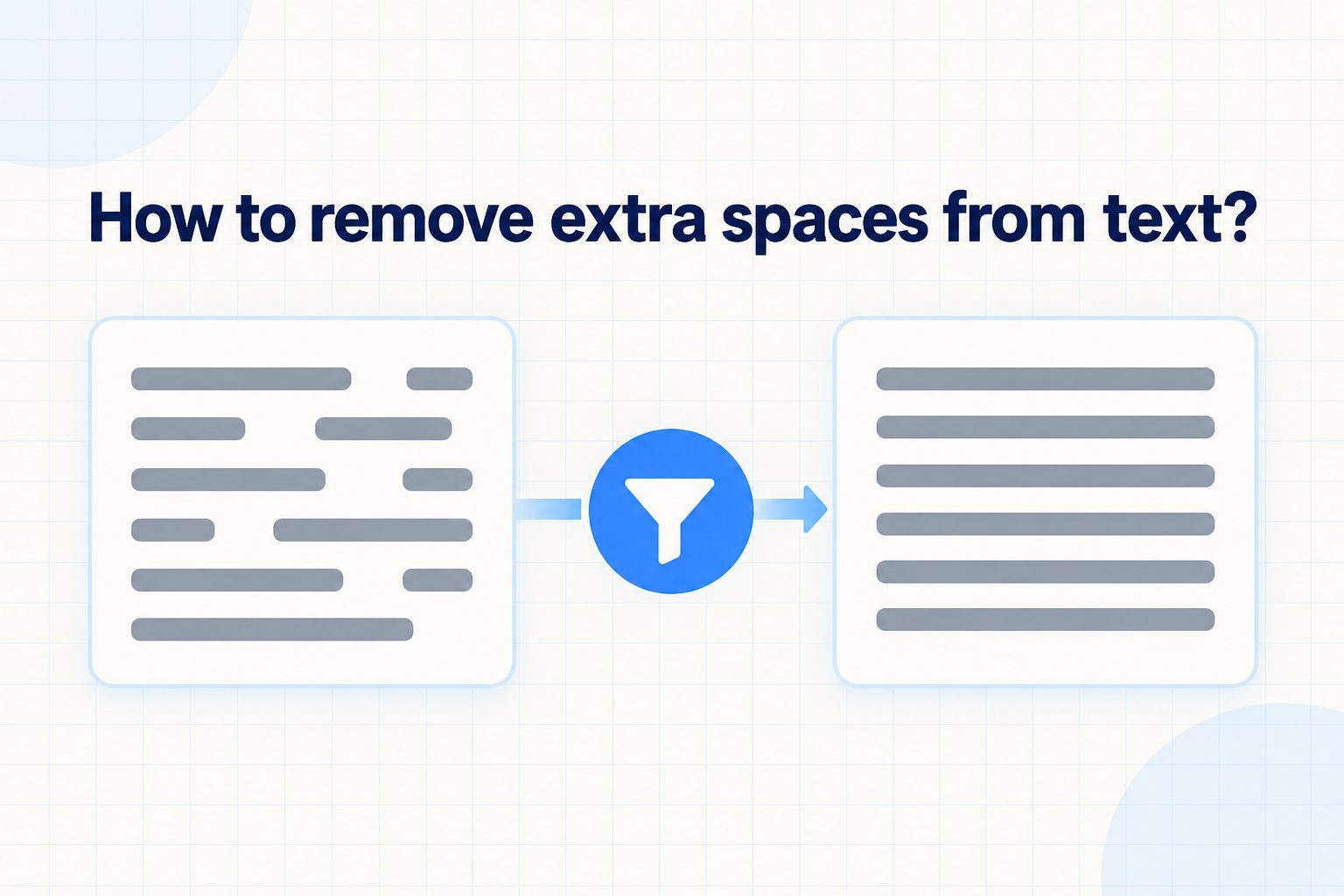
Learning how to remove extra spaces from text is an essential skill for anyone who writes, edits, or works with digital content every day. Extra spaces often appear when you copy content from websites, PDFs, emails, or spreadsheets, and they make your writing look messy and unprofessional. These hidden gaps can affect readability, layout, formatting, and even search performance. In this complete guide, you will learn what extra spaces are, why they happen, and the easiest ways to clean them up.
In the following sections, you will discover manual methods, built-in tools in documents and spreadsheets, practical examples, common mistakes, best practices, and answers to frequent questions. Whether you are a student, blogger, freelancer, or office worker, this guide will help you create neat, polished, and reader-friendly text with less effort.
Why Clean Text With Extra Spaces Removed Matters
Clean text looks professional and is easier to read. When you learn how to remove extra spaces from text, your documents, posts, and emails become clearer and more trustworthy for every reader.
1. Improved Readability For Every Reader
Extra spaces interrupt the natural flow of reading and force the eyes to pause in odd places. When spacing is consistent, sentences feel smooth and ideas are easier to follow. Clean text helps readers focus on your message instead of being distracted by uneven gaps between words and sentences.
2. Professional Appearance In Documents
Resumes, reports, proposals, and blog posts with uneven spacing look careless even if the content is excellent. Removing extra spaces gives your work a polished and organized appearance. It shows attention to detail, which builds trust with clients, teachers, employers, and online audiences.
3. Better Formatting Across Devices
Extra spaces can cause strange line breaks, misaligned paragraphs, and layout problems on phones and tablets. Text that looks fine on a computer may appear broken on smaller screens. Clean spacing ensures your content displays correctly everywhere and keeps headings, lists, and paragraphs properly aligned.
4. Accurate Word Count And Layout
Multiple spaces, blank lines, and trailing spaces can inflate word counts and distort page layout. This creates problems for assignments, publishing guidelines, and design templates. When you clean spacing first, you get accurate measurements and your pages, margins, and line breaks behave exactly as expected.
5. Smoother Copy And Paste Workflow
Copying text from websites and PDFs often brings hidden spaces, hard breaks, and double gaps. If you paste that text directly, formatting becomes messy. Learning how to remove extra spaces from text helps you fix pasted content quickly so you can reuse it without spending extra time reformatting.
6. Stronger Search And Data Quality
Search tools, filters, and sorting functions can fail when entries contain leading, trailing, or double spaces. For example, two identical names may be treated as different because of an invisible space. Clean text improves search accuracy, data matching, and overall content quality for websites and databases.
Benefits Of Removing Extra Spaces From Text
Understanding how to remove extra spaces from text saves time and improves quality. Here are the main benefits you will notice right away.
- Clearer Reading Experience: Even spacing makes paragraphs easier to scan and keeps readers engaged longer.
- Polished Professional Image: Neat text shows care and builds confidence in your work and brand.
- Faster Editing Workflow: Clean files are easier to format, proofread, and publish without repeated fixes.
- Better Data Accuracy: Consistent spacing prevents duplicates, sorting errors, and failed lookups in lists.
- Improved Publishing Results: Clean copy fits templates better and looks good on blogs and documents.
- Less Stress For Writers: A simple cleanup routine removes frustration caused by messy pasted content.
Common Types Of Extra Spaces Found In Text
Not all extra spaces are the same. Knowing the type helps you choose the right fix and clean your text completely.
1. Double Spaces Between Words
Double spaces between words are the most common issue, often caused by fast typing or old typewriter habits. They create uneven gaps that stand out in justified text. Most cleanup tools can replace two or more spaces with a single space, which instantly makes sentences look balanced and professionally formatted.
2. Leading Spaces At Line Start
Leading spaces appear at the beginning of lines or paragraphs after copying from emails or web pages. They push text inward and break alignment. These spaces are hard to see but affect indentation and list formatting. Trimming the start of each line restores clean left alignment and consistent structure.
3. Trailing Spaces At Line End
Trailing spaces sit invisibly at the end of lines and paragraphs. They can cause layout shifts, affect text wrapping, and create errors during data comparison. Although readers may not notice them, they increase file size and interfere with clean formatting, so removing them is an important final step.
4. Multiple Blank Lines And Paragraph Gaps
Extra blank lines often appear when pasting from PDFs or documents with large spacing. They create long empty gaps that break reading flow. Condensing three or four line breaks into a single paragraph break keeps content compact, improves scrolling, and gives articles a neat and modern appearance.
5. Non Breaking And Hard Spaces
Non breaking spaces keep words together but behave differently from normal spaces during search and cleanup. They often come from web pages and design software. Because standard find and replace may miss them, you need special attention to convert or remove them for truly uniform and searchable text.
6. Tabs Used Instead Of Spaces
Tabs are sometimes used for alignment but create uneven gaps when text is moved between programs. A tab may look like several spaces on one screen and like a huge jump on another. Converting tabs to single spaces or proper indentation ensures consistent alignment across editors, websites, and documents.
Simple Steps To Remove Extra Spaces From Text Quickly
Follow these practical steps to clean messy spacing fast without special skills. This method works for most text cleaning tasks.
- Copy Your Text Safely: Make a backup copy before cleaning so you can restore the original if something changes unexpectedly.
- Scan For Visible Issues: Look for double spaces, wide gaps, uneven indentation, and large blank areas between paragraphs.
- Fix Double Spaces First: Replace every occurrence of two spaces with one space and repeat until no doubles remain.
- Trim Starts And Ends: Remove leading spaces at line starts and trailing spaces at line ends for neat alignment.
- Condense Blank Lines: Reduce multiple empty lines to a single paragraph break to improve flow and layout.
- Check Tabs And Special Gaps: Convert tabs to spaces and fix non breaking spaces that normal cleanup might miss.
- Review Final Readability: Read through the cleaned text once to confirm spacing looks even and natural everywhere.
How To Remove Extra Spaces From Text In Documents And Sheets
Most office tools have built-in features that make it easy to learn how to remove extra spaces from text without manual editing.
1. Clean Spacing In Word Processors
Word processors include find and replace tools that can replace double spaces with single spaces in seconds. You can also show formatting marks to see hidden spaces and paragraph breaks. Using style settings for paragraph spacing prevents you from adding extra blank lines just to create visual gaps.
2. Fix Gaps In Presentation Slides
Text pasted into slides often carries extra spaces and line breaks that distort text boxes. Pasting as plain text removes hidden formatting first. Then you can adjust line spacing with built-in controls instead of pressing space repeatedly, which keeps titles and bullet points aligned and easy to read.
3. Tidy Text In Note Apps
Note apps often preserve messy spacing from web clips and emails. A quick cleanup with find and replace plus manual trimming makes notes searchable and readable. Keeping paragraphs short and removing trailing spaces also improves syncing, sharing, and reading on mobile devices.
4. Use Trim Functions In Spreadsheets
Spreadsheets often contain leading, trailing, and double spaces that break sorting and matching. Built-in trim functions remove extra spaces while keeping single spaces between words. Cleaning cells before filtering or merging ensures names, addresses, and product lists match correctly and reports stay accurate.
5. Remove Spaces With Find And Replace
Find and replace is the fastest way to fix repeated spacing problems across long documents. You can replace two spaces with one, then repeat until clean. For line breaks, replace double paragraph marks with single ones. Always review changes carefully to avoid accidentally joining words or removing intentional breaks.
6. Prevent Future Spacing Problems
Prevention saves more time than repeated cleanup. Use paragraph styles instead of extra spaces for alignment, turn on formatting marks while editing, and paste content as plain text. These simple habits reduce hidden spaces and keep every new document clean from the very beginning.
Practical Text Cleaning Habits For Everyday Writing
Good spacing habits make cleaning faster and keep your writing neat without extra effort or stress.
Paste copied content as plain text whenever possible to strip hidden spaces and formatting. This single habit prevents most double spaces, strange tabs, and uneven line breaks that come from websites, PDFs, and chat messages.
Use proper paragraph spacing settings instead of pressing enter or space many times. Built-in spacing controls create balanced layouts and avoid large empty gaps that make documents look unprofessional and hard to navigate.
Proofread with formatting marks visible at least once before publishing. Seeing dots for spaces and symbols for breaks helps you spot doubles, trailing gaps, and empty paragraphs that are invisible in normal view.
Keep a simple cleanup checklist for blogs, assignments, and work reports. Checking for double spaces, blank lines, and alignment issues takes only a minute but greatly improves clarity, consistency, and overall presentation quality.
Examples Of Text Cleaned By Removing Extra Spaces
These practical examples show how learning how to remove extra spaces from text improves real content in everyday situations.
1. Blog Paragraph Cleanup Example
A blog draft copied from a document may contain double spaces and extra blank lines that make it look scattered. After cleanup, sentences flow smoothly with even spacing and compact paragraphs. Readers stay focused longer, and the article looks professional and ready for publishing without distracting gaps.
2. Resume And Cover Letter Example
Resumes with uneven spaces look careless and may be rejected quickly. Removing extra spaces aligns job titles, dates, and bullet points perfectly. The result is a sharp, organized layout that highlights skills clearly and creates a strong first impression with hiring managers.
3. Product Description Cleanup Example
Online product descriptions pasted from suppliers often contain irregular gaps and line breaks. Cleaning the spacing makes features easier to scan and improves customer trust. Neat descriptions also display better on mobile screens, which can lead to higher engagement and fewer abandoned product pages.
4. Student Assignment Cleanup Example
Assignments copied between programs can develop double spaces and misaligned paragraphs. After removing extra spaces, the essay meets formatting rules and word count becomes accurate. Teachers can read the work easily, and students avoid losing marks for poor presentation and inconsistent layout.
5. Email Message Cleanup Example
Forwarded emails accumulate extra spaces, broken lines, and uneven gaps. Cleaning them before resending makes the message clear and polite. Short paragraphs with single spacing are easier to read on phones, which helps recipients understand your request quickly and respond without confusion.
6. Data List Cleanup Example
Customer names and addresses with leading or double spaces cause sorting and search errors. After trimming and normalizing spaces, every entry matches correctly. Clean lists improve mailing accuracy, reduce duplicates, and make filtering, reporting, and analysis much faster and more reliable.
Common Mistakes To Avoid When Removing Extra Spaces From
Simple cleanup errors can damage formatting or remove spaces you actually need. Avoid these mistakes for safe and accurate results.
1. Replacing All Spaces At Once
A common mistake is removing every space instead of only extra spaces, which joins all words together. Always replace double spaces with single spaces rather than deleting everything. Check a small section first, then apply changes to the whole document only when the result looks correct and readable.
2. Ignoring Non Breaking Spaces
Many people clean normal spaces but forget non breaking spaces from web content. These hidden characters keep gaps uneven and prevent full cleanup. If double gaps remain after normal replacement, look for special spaces and convert them so your entire document has consistent and searchable spacing.
3. Deleting Needed Paragraph Breaks
Aggressive cleanup can remove intentional paragraph breaks and turn separate ideas into one long block. Preserve single breaks between paragraphs while reducing only multiple empty lines. Keeping proper paragraph structure maintains readability and prevents your article from becoming overwhelming and difficult to scan.
4. Forgetting Leading And Trailing Gaps
Writers often fix spaces between words but leave spaces at the start and end of lines. These invisible gaps cause alignment issues and data mismatches. Always trim both ends of paragraphs and table cells to ensure clean formatting, accurate sorting, and professional presentation across all platforms.
5. Using Spaces For Alignment
Adding many spaces to center text or align columns is unreliable and breaks on different screens. Use tabs, tables, or alignment buttons instead. Manual space alignment creates messy gaps that are hard to clean later and makes documents look unprofessional when fonts or devices change.
6. Skipping Final Visual Review
Skipping proofreading after automatic cleanup is risky because tools can occasionally join words or miss hidden gaps. A quick final read helps you catch leftover doubles, awkward breaks, and layout shifts. This short review ensures your text is truly polished, natural, and ready to share.
Best Practices For Removing Extra Spaces From Text
These best practices help you clean spacing safely while keeping your original meaning, style, and formatting intact.
1. Always Keep An Original Backup
Before cleaning, save a copy of the original text in a separate file or note. If cleanup removes something important, you can quickly restore it. Backups are especially useful for long reports, client work, and data lists where accidental changes could cause serious formatting or accuracy problems.
2. Show Hidden Formatting Marks
Turn on formatting symbols to see spaces, tabs, and paragraph breaks clearly. Visible marks reveal double gaps, trailing spaces, and empty paragraphs that normal view hides. Working with these indicators makes cleanup faster, more accurate, and much less frustrating for beginners and experienced editors alike.
3. Work From Large To Small Issues
Start by fixing large problems like multiple blank lines and tabs, then move to double spaces and trailing gaps. This order prevents repeated work and gives cleaner results. Handling broad layout issues first makes smaller spacing details easier to spot during the final review stage.
4. Use Styles Instead Of Manual Gaps
Use heading styles, indentation, and paragraph spacing controls rather than adding spaces manually. Styles keep formatting consistent and responsive across devices. This approach reduces future cleanup needs and ensures documents, blogs, and presentations maintain a clean and professional structure automatically.
5. Clean Data Before Sorting
Always remove extra spaces from names, emails, and lists before sorting, filtering, or removing duplicates. Clean entries match correctly and prevent false differences. Early cleanup saves time, improves analysis accuracy, and ensures reports, mailing lists, and spreadsheets remain reliable and well organized.
6. Build A Quick Cleanup Routine
Create a repeatable routine of checking doubles, trimming edges, condensing breaks, and reviewing results. A short checklist turns cleanup into a one-minute habit. Over time, this routine improves writing speed, reduces errors, and helps you produce polished content consistently without extra stress or effort.
Frequently Asked Questions
What Is The Easiest Way To Remove Extra Spaces From Text?
The easiest way is to use find and replace to change double spaces into single spaces, then trim start and end gaps. Many editors and online tools also offer one-click cleanup. Always review the result to ensure paragraph breaks and intentional formatting remain intact and readable.
Why Does Pasted Text Contain So Many Extra Spaces?
Pasted text carries hidden formatting, non breaking spaces, tabs, and line breaks from its original source. Websites, PDFs, and emails use different spacing rules. Pasting as plain text first removes most hidden code and makes final cleanup much faster and more accurate.
How Can I Remove Extra Blank Lines Quickly?
You can replace multiple paragraph breaks with a single break using find and replace. Repeat the process until only single gaps remain. This condenses long empty areas, improves scrolling, and gives documents and blog posts a compact, professional appearance without manual deletion.
Will Removing Extra Spaces Change My Word Count?
Yes, cleaning extra spaces and blank lines can slightly reduce word count and page length. It removes false gaps without deleting real words. The updated count is more accurate and helps you meet assignment limits, publishing guidelines, and layout requirements with confidence.
How Do I Fix Spacing In Spreadsheets And Lists?
Use built-in trim functions to remove leading, trailing, and double spaces while preserving single gaps between words. After cleaning, check sorting and filtering to confirm entries match correctly. Clean data prevents duplicates and improves search accuracy across large lists.
Should I Keep Single Spaces After Periods?
Yes, modern style uses one space after periods and between sentences. Double spaces after periods create uneven gaps, especially in digital publishing. Sticking to single spacing keeps text consistent, improves readability, and matches current professional writing standards everywhere.
Conclusion
Learning how to remove extra spaces from text is a small skill that creates a big improvement in clarity, professionalism, and efficiency. By recognizing common spacing issues, using simple cleanup steps, and following best practices, you can turn messy drafts into polished content.
Start applying these methods today to keep your blogs, documents, emails, and data neat and reader-friendly. With regular practice, clean spacing will become a natural habit that saves time and strengthens every piece of writing you share.